Client portal
Your client checks each item, then signs on screen.Approve it, or flag it with a note and a photo.
Your client gets a portal of their own. Units arrive there once your project manager has decided on their items. Your client opens a unit, answers each item, and signs it off when nothing is left flagged.
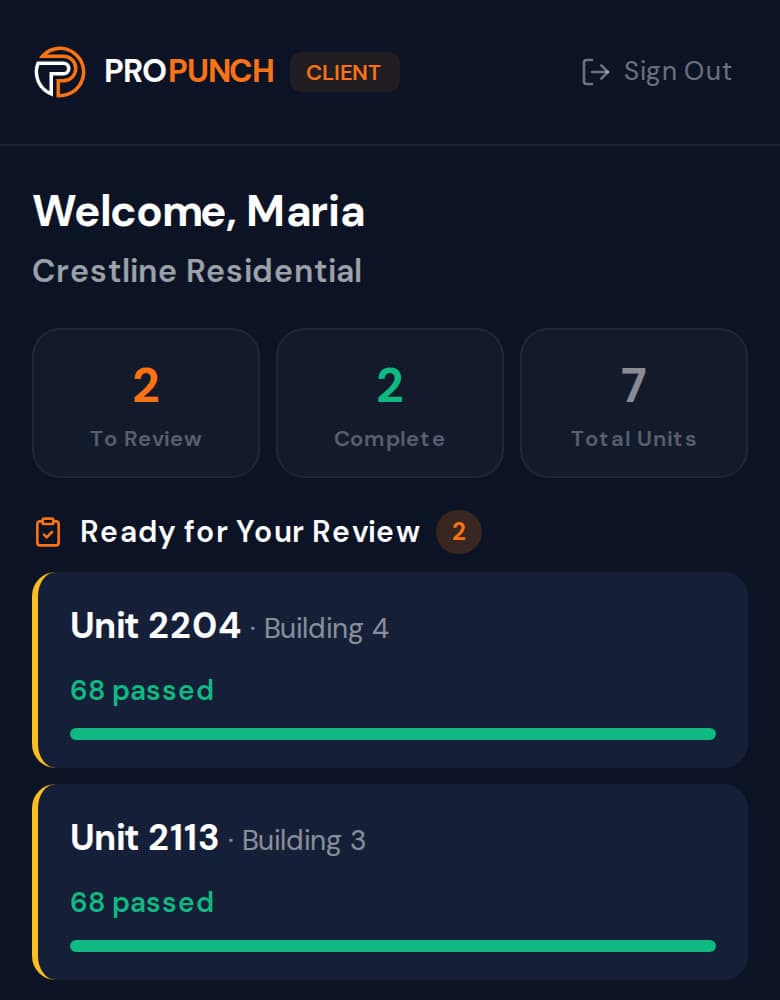
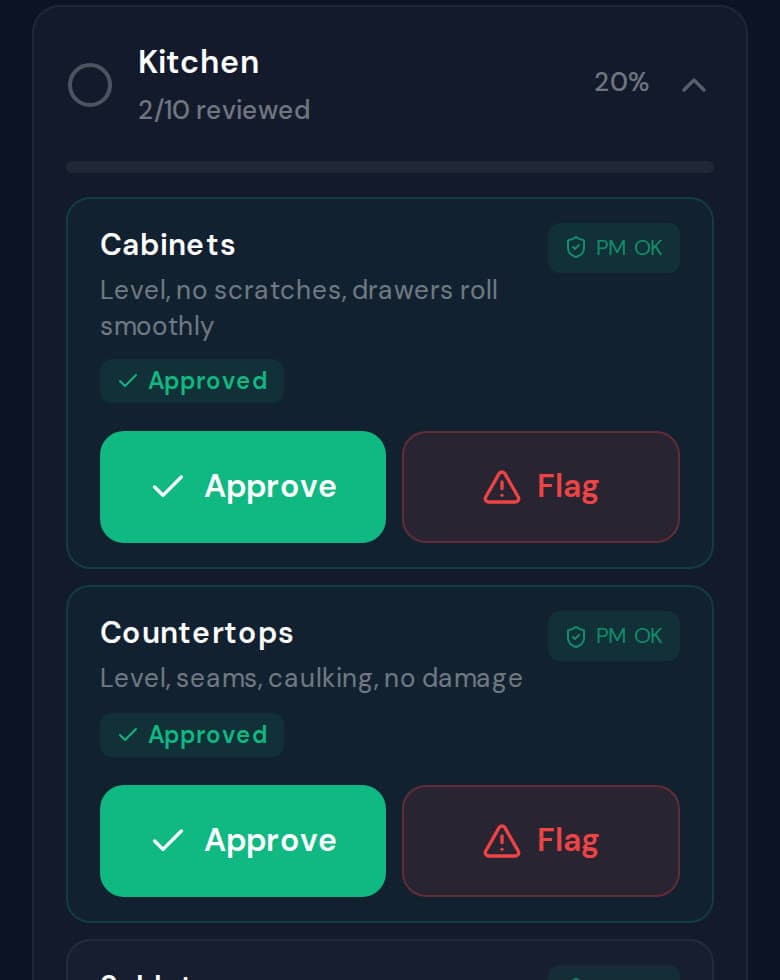
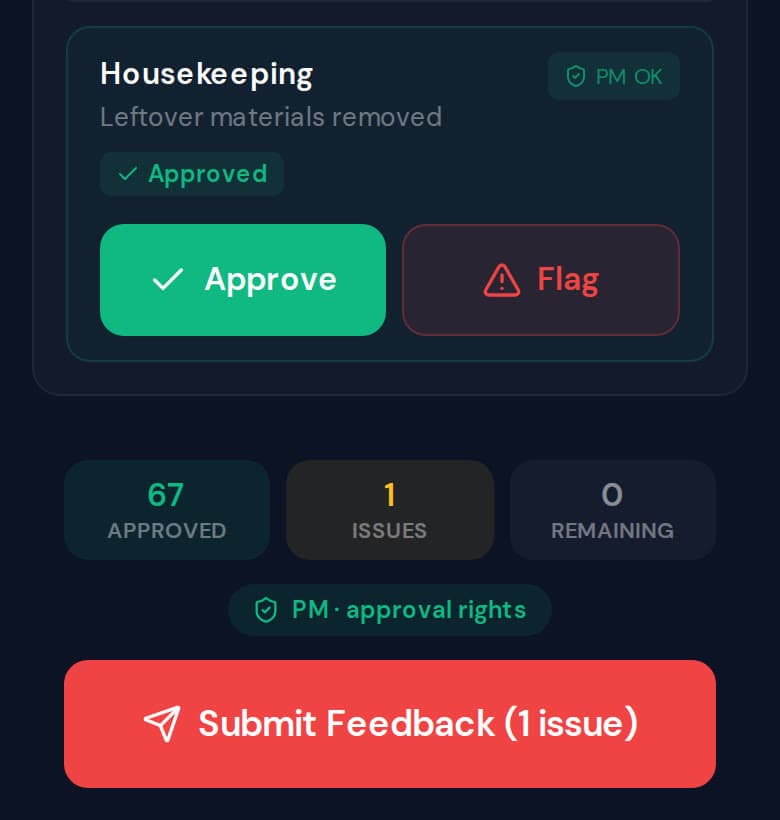
Example of a client reviewing the kitchen in one unit. Each item shows PM OK. The client approves Cabinets and Countertops, flags Grout with the note “Grout missing at the corner beside the range” and one photo, and submits the feedback, which sends the unit back to the project manager.
Three things your client does.
They go through the unit room by room, on the same checklist your crew and project manager worked from. Every item gets an answer: approved, or flagged.
Step 1: Open a unit and check each item.
Items are grouped by room. Each one shows what it should look like, PM OK where your project manager approved it, and the crew’s note if they left one.
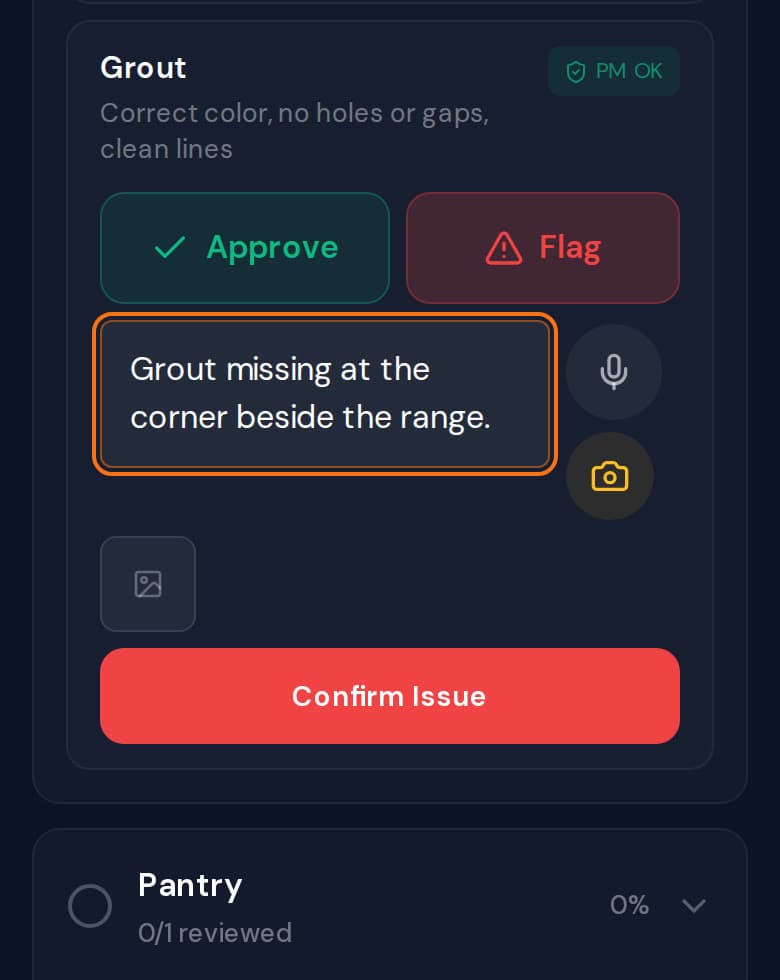
Step 2: Flag anything that isn’t right.
Tap Flag, describe the problem and add a photo. If something isn’t on the list at all, the client can add it as a new item.
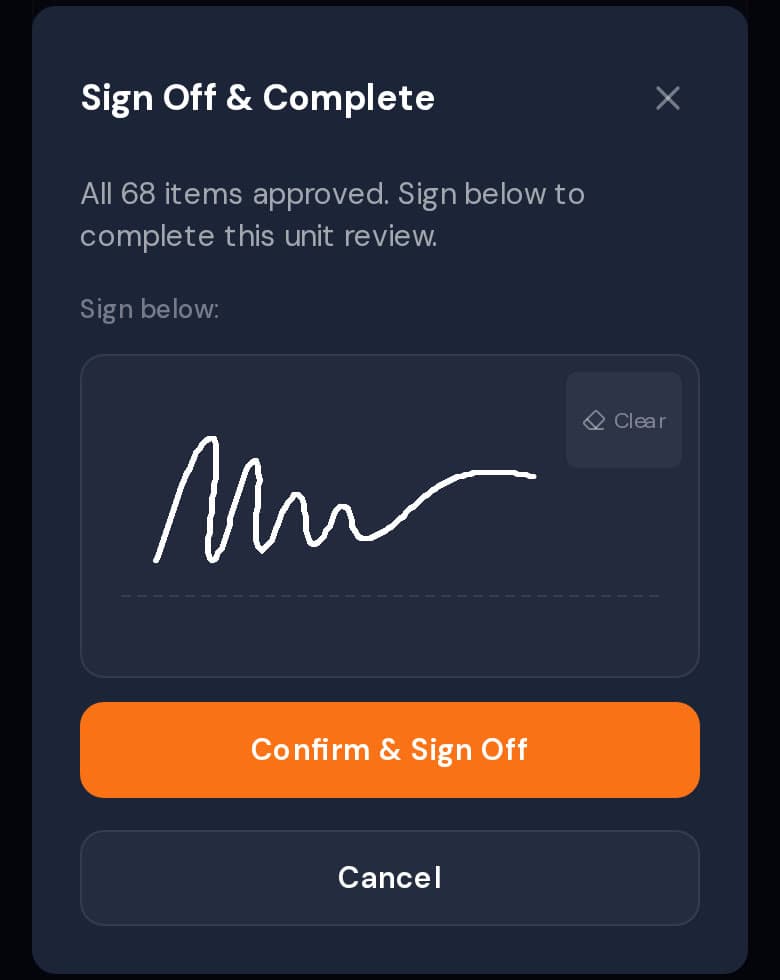
Step 3: Sign it off on screen.
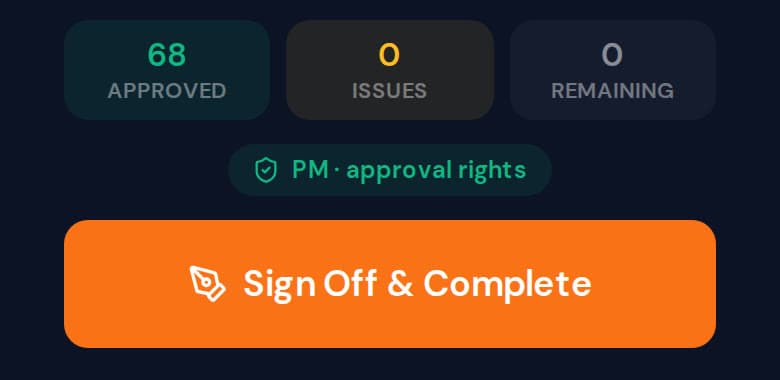
With every item approved and nothing flagged, the client’s project manager signs with a finger and the unit is complete.
Sample project. Screens from the client portal.
A flag goes back to your project manager.
When the client has answered every item and something is flagged, they submit their feedback. The unit moves back to PM review, with the client’s notes and photos on the flagged items. Once it’s fixed and your project manager approves it again, it returns to the client.
- Every item needs an answer before the review can be sent or signed.
- A unit can’t be signed off while anything on it is flagged.
- Both kinds of client seat can flag items and send feedback.
Two kinds of client seat.
The person who signs gets a seat that can sign. Everyone else on the client’s side can still review the work and have their say.
Client PM
Reviews each item, approves or flags it, sends feedback, and signs units off. The only seat that can sign.
Client viewer
Reviews each item, approves or flags it with a note and a photo, and sends feedback. Can’t sign. When everything is approved, the screen tells them so:
“All items approved. Your project manager can finalize sign-off.”
Sign-off is checked twice: the button only appears for a client PM, and the database turns down a sign-off from anyone else.
Your client sees finished work, not work in progress.
The portal shows what is ready for them to judge, and what they have already signed.
See what each unit’s record keeps- Their projects
- The projects you’ve linked to their company, and the units in each.
- Units ready for review
- A unit appears once your project manager has decided on its items. Units still with the crew, or waiting on your PM, don’t show up.
- Each item
- The checklist wording, PM OK where your PM approved it, and the crew’s note where there is one.
- Signed-off units
- Units the client signs are marked Signed off. The signature, who signed and when are saved with the unit.
See it on your own project.
Thirty minutes. We walk a real unit, turn it into a punch list, and show you the record it leaves behind.
Prefer email? support@propunch.com