Procore & CompanyCam
Two-way Procore sync, set up with you.Fails go out with their photos. Your GC’s punch items come back to the right unit.
For GCs and builders who already run their jobs in Procore and CompanyCam. What your crews find in the field reaches the tools your team opens every morning, and nobody types it twice.
Example: Caulk in the kitchen of Unit 2111 fails with one photo. ProPunch sends it to Procore on its own, where it becomes a punch item titled Unit 2111/Kitchen/Caulk, gap at the backsplash corner, with the photo attached, the unit’s Location set, and a link in its description back to the item in ProPunch.
What moves
 ProcoreTwo-way
- Out
- Each failed item with a photo becomes a punch item, with its photos and its unit’s Location.
- In
- Punch items your GC creates in Procore, with their photos, status, ball in court and due date.
 CompanyCamPhotos out, recent photos in
- Out
- Photos of failed items, deliveries and appliance labels, with a caption.
- In
- The four latest photos from the linked project, to view only.
ProPunch to Procore
A failed item becomes a Procore punch item.
Your GC keeps working in Procore Punch List. Your crews keep working in ProPunch. Each fail shows up where the GC already looks, with the evidence attached.
- When it goes
- As soon as an item fails with a photo, on the crew’s checklist or in a video walkthrough. Nobody re-types it.
- The title
- Unit, room and item, then the issue: Unit 2111/Kitchen/Caulk — gap at the backsplash corner.
- The photo
- Attached to the punch item. More photos of the same failed item join the same punch item rather than starting a new one.
- The Location
- The unit’s own Procore Location. Linking a project lines your buildings and units up with Procore’s Locations, reusing the ones already there.
- The way back
- The description links to that item in ProPunch, so your team can open the checklist it came from in one click.
Procore to ProPunch
Items your GC adds in Procore come back to the right unit.
A punch item your GC creates in Procore doesn’t wait for someone to copy it over. It shows up on the ProPunch project, ready to tie to the checklist item it’s about.
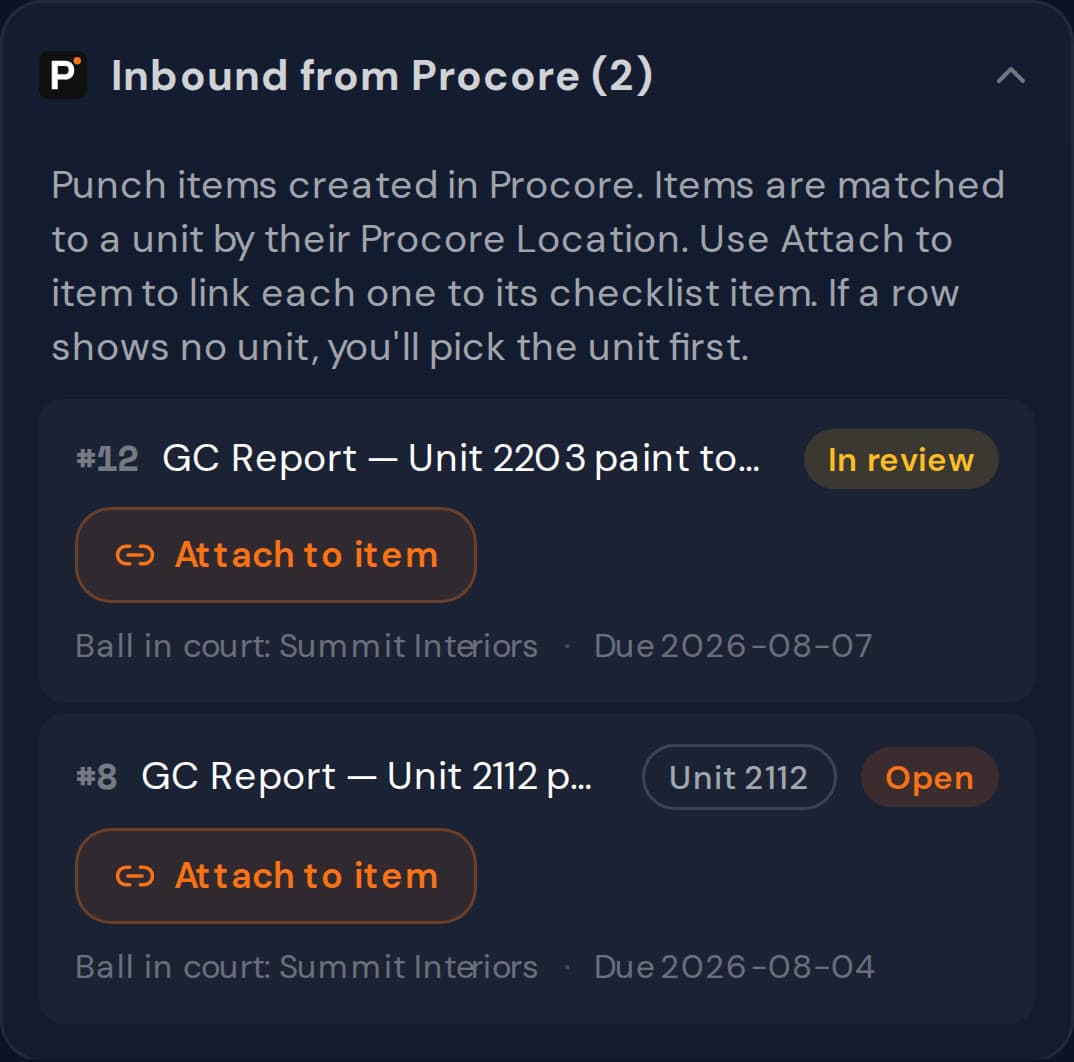
Step 1: It arrives on the project.
ProPunch checks the linked Procore project every 15 minutes. New punch items land under Inbound from Procore with their photos, Procore status, ball in court and due date.
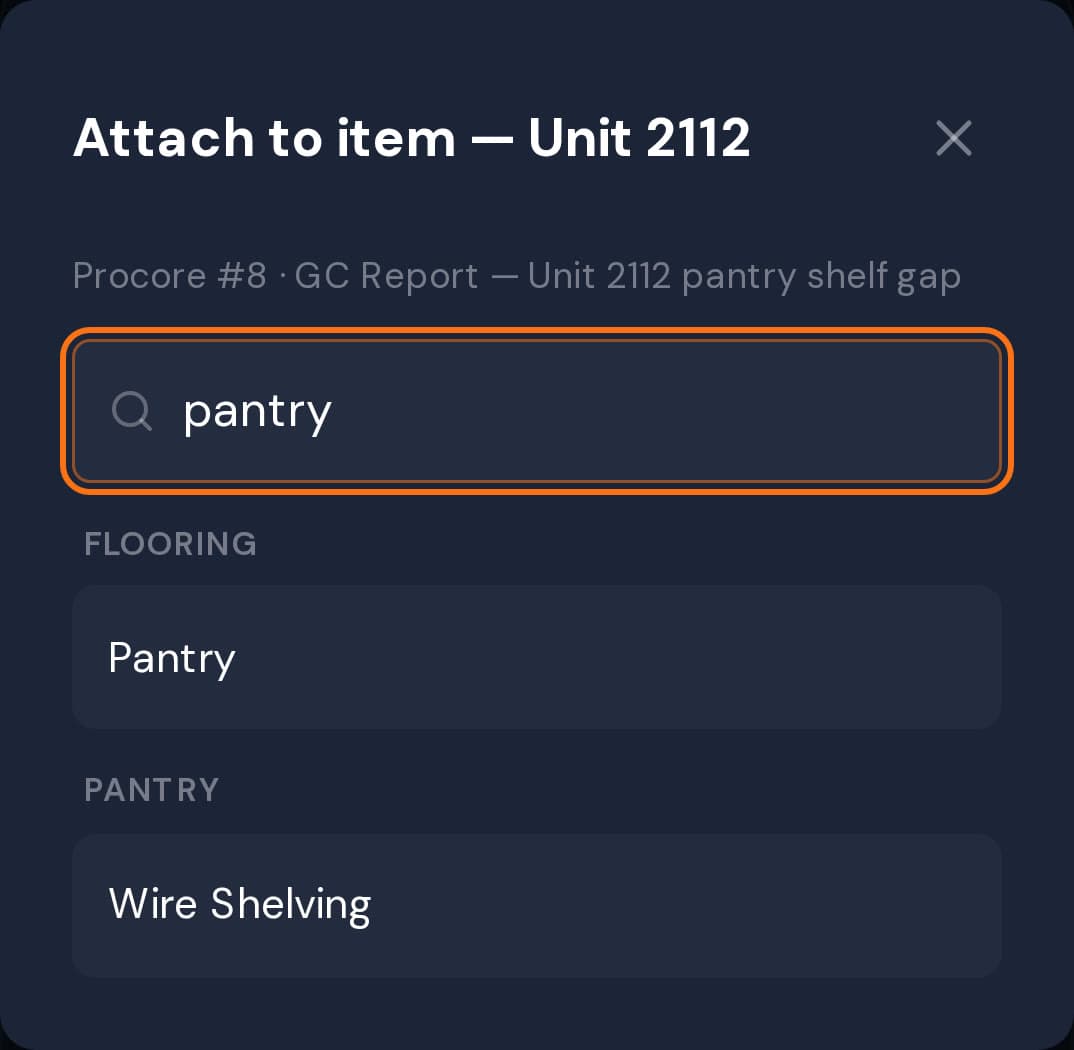
Step 2: Attach it to the checklist item.
The item’s Procore Location tells ProPunch which unit it belongs to. Search that unit’s checklist and pick the item. A row with no unit asks for the unit first.
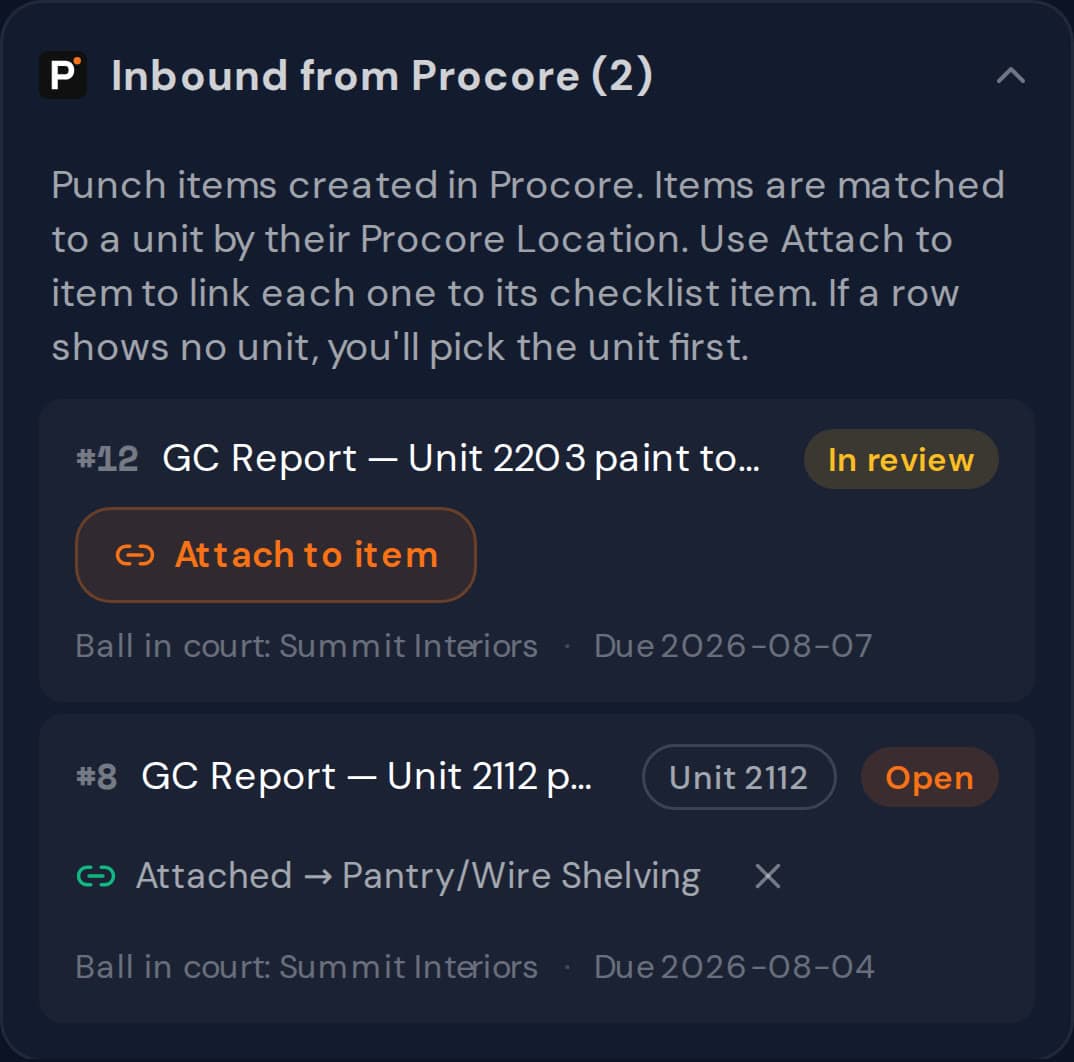
Step 3: It stays with the item.
The row shows where it went, and the checklist item carries the Procore issue on the review screen, with a link to it in Procore.
Sample project. Screens from the project page.
Procore never changes a pass or a fail in ProPunch. Your project manager still makes that call.
CompanyCam
Photos land in the CompanyCam project your crews already use.
Photos go out to CompanyCam. The latest few come back to view on the project. Nothing in CompanyCam changes a result in ProPunch.
- Once a ProPunch project is linked to its CompanyCam project, photos of failed items, deliveries and appliance labels go there, with a still from each failed item in a video walkthrough.
- Each photo carries a written caption with the unit, the room and item or the delivery, and a View in ProPunch link.
- On a computer, the ProPunch project shows the four latest photos from that CompanyCam project, to view only. A unit can also be linked to its own CompanyCam project, for browsing its photos.
- An owner or admin connects once by pasting a CompanyCam access token in Admin Settings. An owner, admin or project manager links each project.
Example: two photos in a linked CompanyCam project, each with its caption. One is from Caulk failing in the kitchen of Unit 2111, the other from a delivery. Each caption ends with a View in ProPunch link.
How setup works
Set up the Procore connection.
Six steps, one sign-in. An owner or admin connects once for the whole organization; each project is then linked to its Procore project.
Starting a new project? Create it in ProPunch from the Procore project instead: its name, address and dates come across already linked, with its drawings if you want them. CompanyCam connects separately, with an access token an admin pastes in Admin Settings.
The setup guide on its own pageProduction installs are set up with ProPunch while Procore reviews our production access. These are the steps we follow with you.
Step 1: Sign in to ProPunch as an owner or admin
Connecting is an organization-level action, so it needs one of those two roles.
Step 2: Open Admin Settings
Procore is listed under Construction Platforms.
Step 3: Choose Connect on the Procore card
You are sent to Procore to authorize.
Step 4: Authorize with your Procore login
Approve the request. You return to ProPunch, where the card shows the connected Procore company and who authorized it.
Step 5: Open a ProPunch project
Any project you want to connect to Procore.
Step 6: Link it to the Procore project
In the project’s Procore row choose Connect, pick the matching Procore project from the list, then Link. Repeat for each project. An owner, admin or project manager can link a project.
What happens next
Linking a project lines its buildings and units up with the Procore project’s Locations, reusing the ones already there. Failed checklist items with a photo then go to your Procore Punch List on their own, with the photo attached and the unit’s Location set. Punch items created in Procore appear in the linked ProPunch project within 15 minutes, under Inbound from Procore. The connection needs no install key and no service account, and an admin can disconnect, or remove a project’s Procore data, without contacting us.
Permissions the authorizing user needs
In the Procore project you are linking: Punch List — Standard and Locations — Standard. Add Drawings — Read Only only if you plan to use the drawings import. ProPunch acts as the user who authorized it and never exceeds that user’s own Procore permissions.
Support
Email support@propunch.com, Monday to Friday, US Eastern. First response within one business day; if the connection is down, within four business hours.
What we read from Procore, what we write, and how long we keep it is set out in the connected services section of our privacy policy.
Request an integration
Run your jobs in another tool?
Tell us which one and what should move between it and ProPunch. We read every request when we choose what to connect next.
See it on your own project.
Thirty minutes. We walk a real unit, turn it into a punch list, and show you the record it leaves behind.
Prefer email? support@propunch.com