Build a project
Create a project with its buildings and units, assign installer companies by trade, and start every unit from a checklist.
Read the transcript
The narration, word for word.
How to build a new project, from the first screen to units ready for work.
Open Projects and tap the plus button. Choose Build manually, to type the project in yourself.
Name the project. The address and the client company are optional, so you can continue past them. Then choose the trades you cover.
Say how many buildings there are, then type the first and last unit number. Confirm the structure.
Choose the installer company, and tap the trades it handles.
Pick the floorplan, select the units that use it, and save. The floorplan brings its checklist to every one of those units.
Review the summary and tap Create Project. You can tell the crew right away, or skip and do it later. Your units are ready for work.
That is a new project. Next, add your people.
Watch next
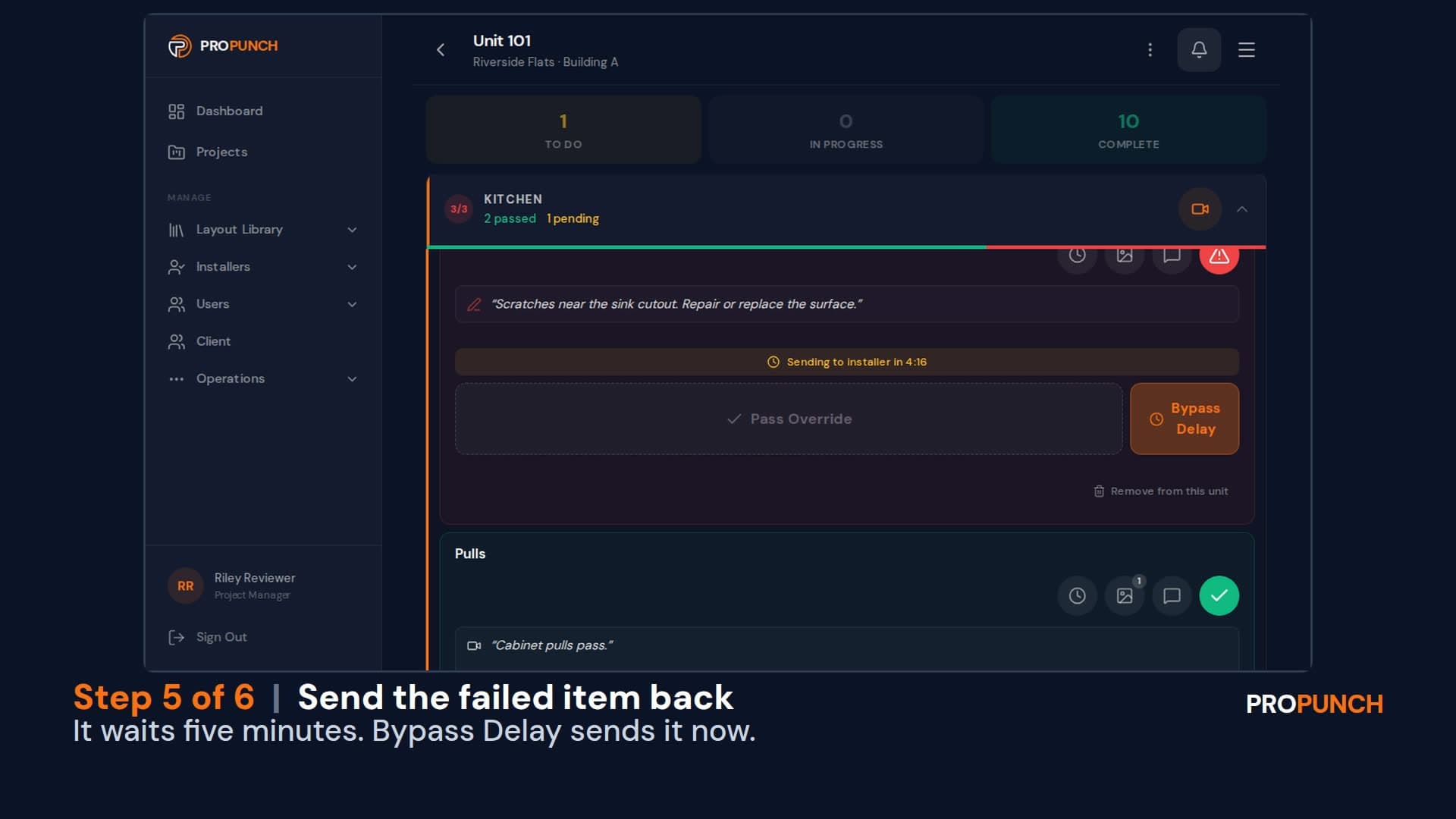
Review a unit and send back what fails (1 minute 25 seconds)
Read what the crew said on each item, pass or fail it, and send a failed item back to the crew with what needs fixing.
English
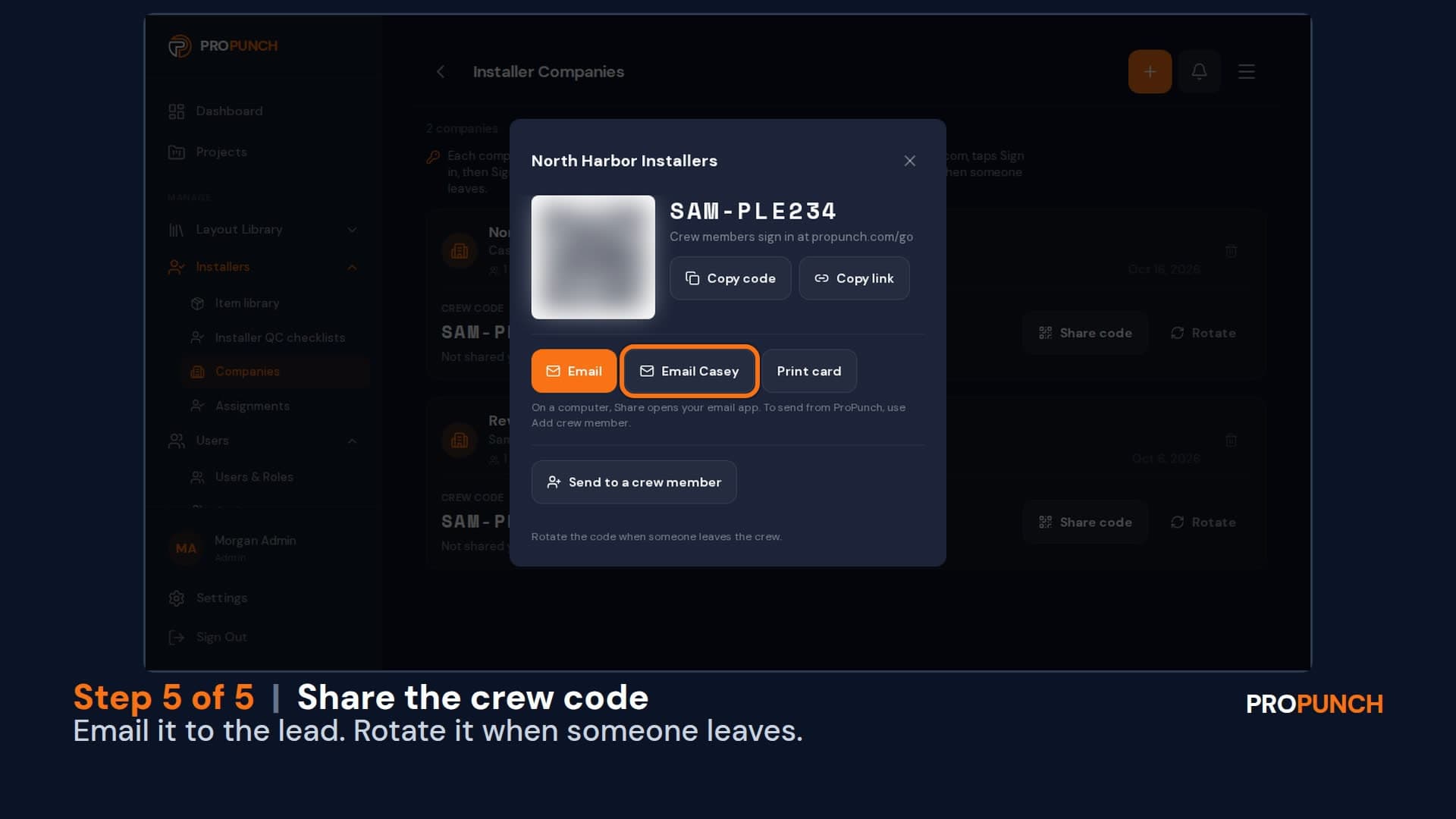
Add your people (1 minute 26 seconds)
Invite a project manager and set what they can see, add an installer company, and share its crew code with the crew.
English
Looking at ProPunch for your own projects? Schedule a demo